
How to Fix an Overgrown Lawn in a Real Estate Photo (6 Steps)
Learn how to fix an overgrown lawn in a real estate photo with AI while preserving bare patches, property features, hardscape, and yard boundaries.

In this tutorial10 sections
An overgrown lawn can distract from the size and layout of an otherwise useful backyard photo. This tutorial shows how to fix an overgrown lawn in a real estate photo with AI using a real RePhoto workflow, from the original upload to an accepted before-and-after comparison.
Quick answer: upload the original exterior, wait for image-specific suggestions, choose Freshly Mowed Lawn Look, generate one focused edit, and verify that bare patches, brown areas, buildings, hardscape, and other yard features remain accurate before accepting. This real run used one RePhoto credit.
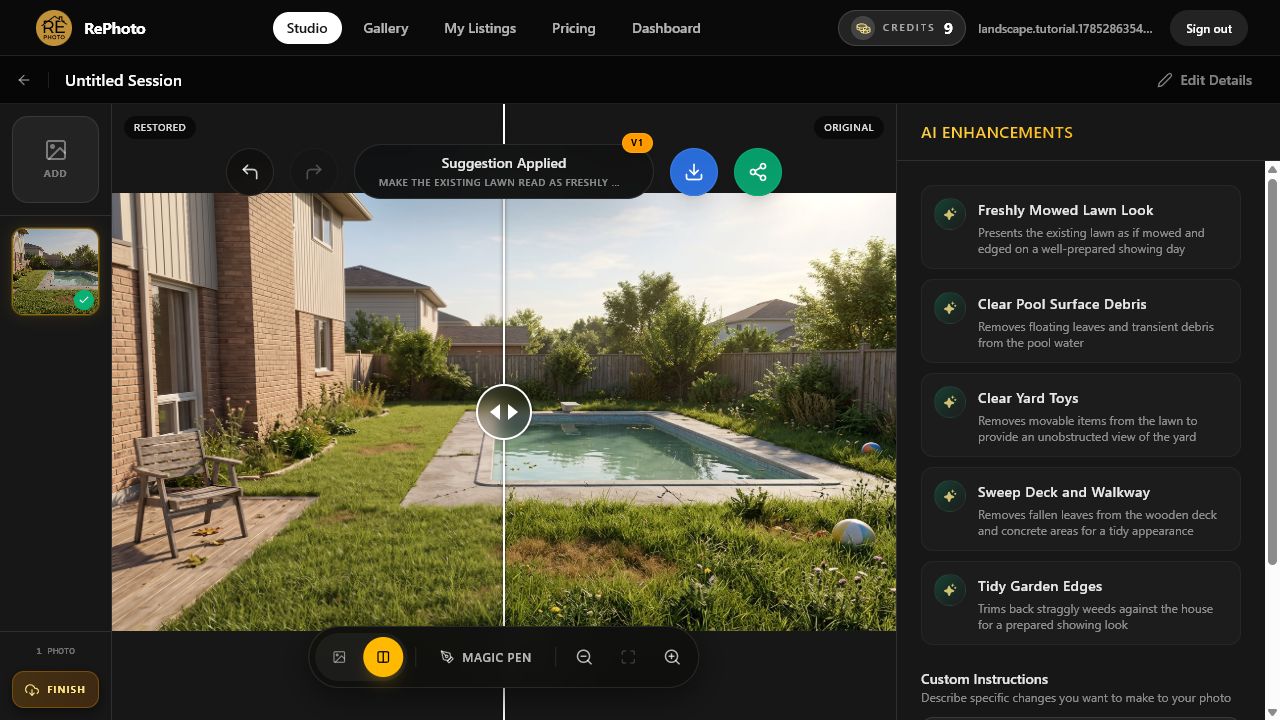
Lawn enhancement versus lawn replacement
A focused lawn enhancement presents the grass that is already visible as maintained: shorter blades, cleaner edges, fewer tall weeds, and subtle mowing lines. It should not invent a perfect new lawn, hide dead areas, or change the shape of planting beds and hardscape.
AI lawn replacement is a more extensive virtual landscaping concept that can cover dirt, dead grass, or unfinished ground with new turf. That is a material change to the property's visible condition and needs different disclosure and usage. This tutorial deliberately uses the narrower maintenance edit and keeps every existing brown zone and bare patch.
Step 1: Choose a clear exterior source photo
Start with the highest-resolution original available. The example shows a backyard with long grass and weeds around a pool, plus a brick house, deck, concrete surround, fence, trees, shrubs, pool debris, and movable toys. Those reference points make it possible to confirm that only the requested lawn maintenance changed.
- Use a level, wide photo that shows the lawn boundaries clearly.
- Keep buildings, fences, paths, pools, and planting beds visible.
- Avoid portal thumbnails and heavily compressed screenshots.
- Do not pre-saturate the grass or replace the sky first.
- Save the untouched original for comparison and disclosure.

Step 2: Upload the overgrown yard photo
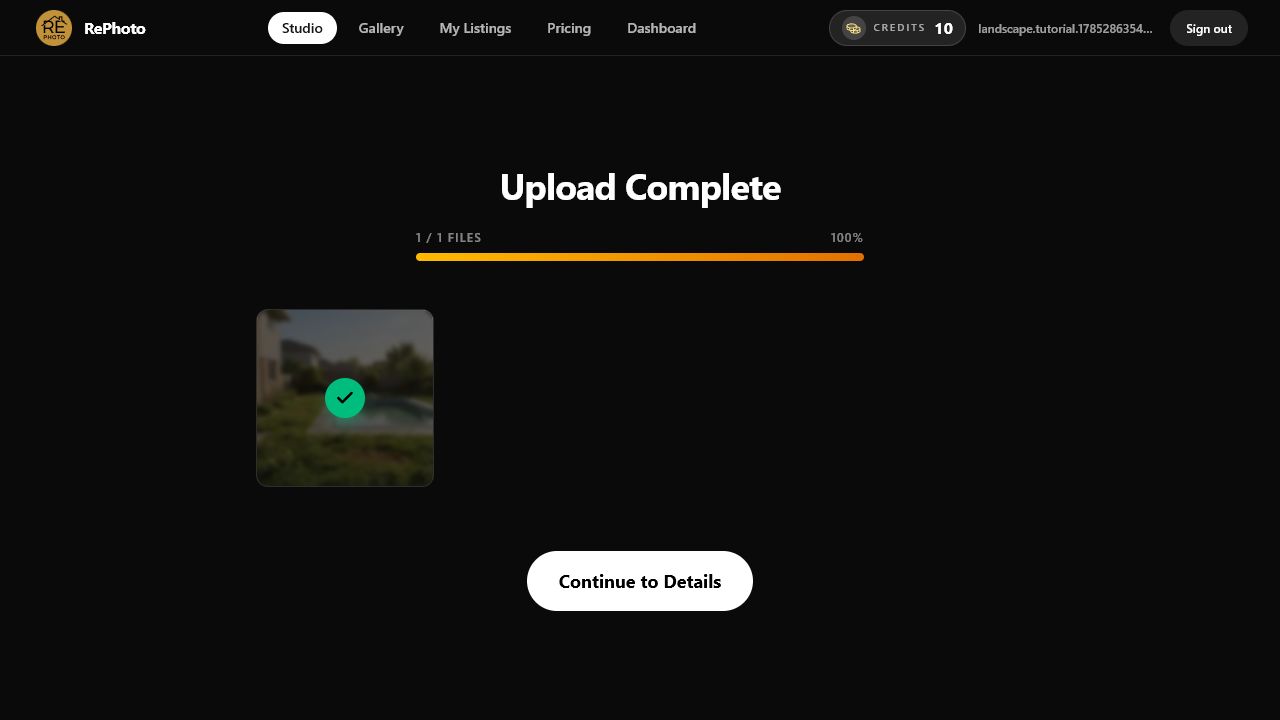
Select the exterior file and wait for the upload confirmation. RePhoto saves the source inside the listing session before analyzing the scene. Choose Continue to Details only after the correct file reaches 100%.
Step 3: Choose Freshly Mowed Lawn Look
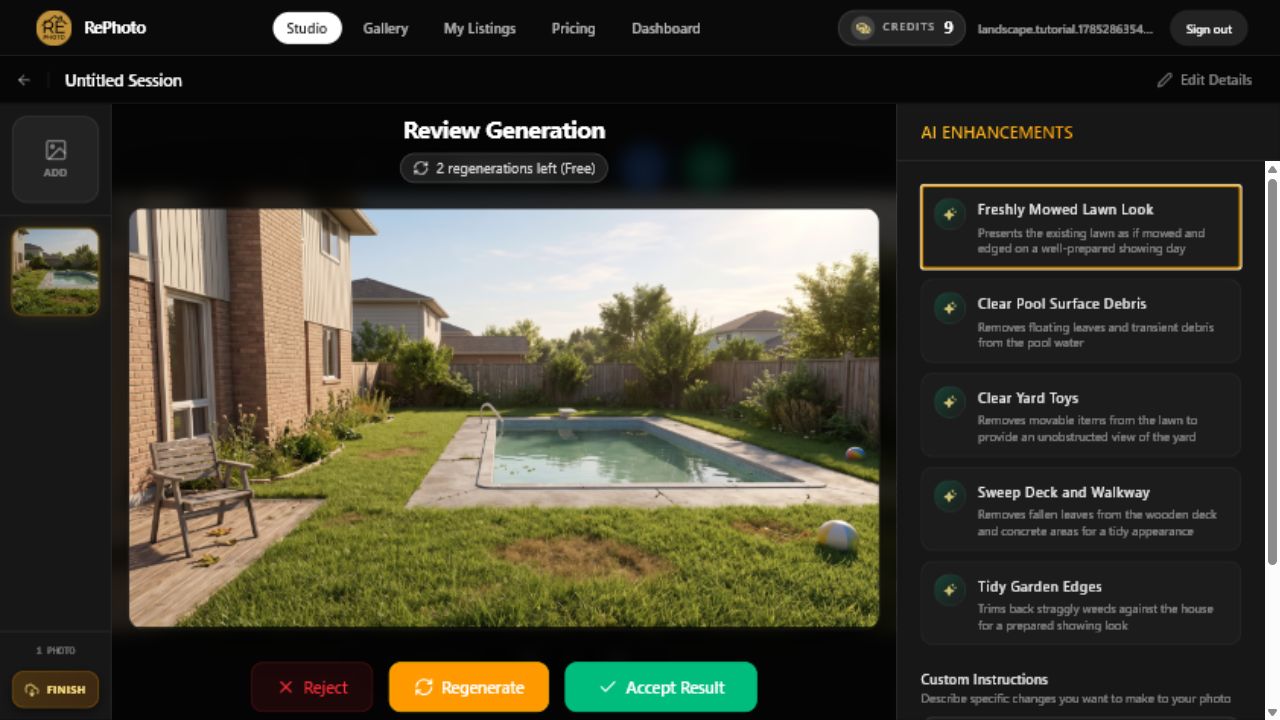
Wait for AI Enhancements to inspect the actual exterior. In this run, RePhoto returned Freshly Mowed Lawn Look with the description “Presents the existing lawn as if mowed and edged on a well-prepared showing day.”
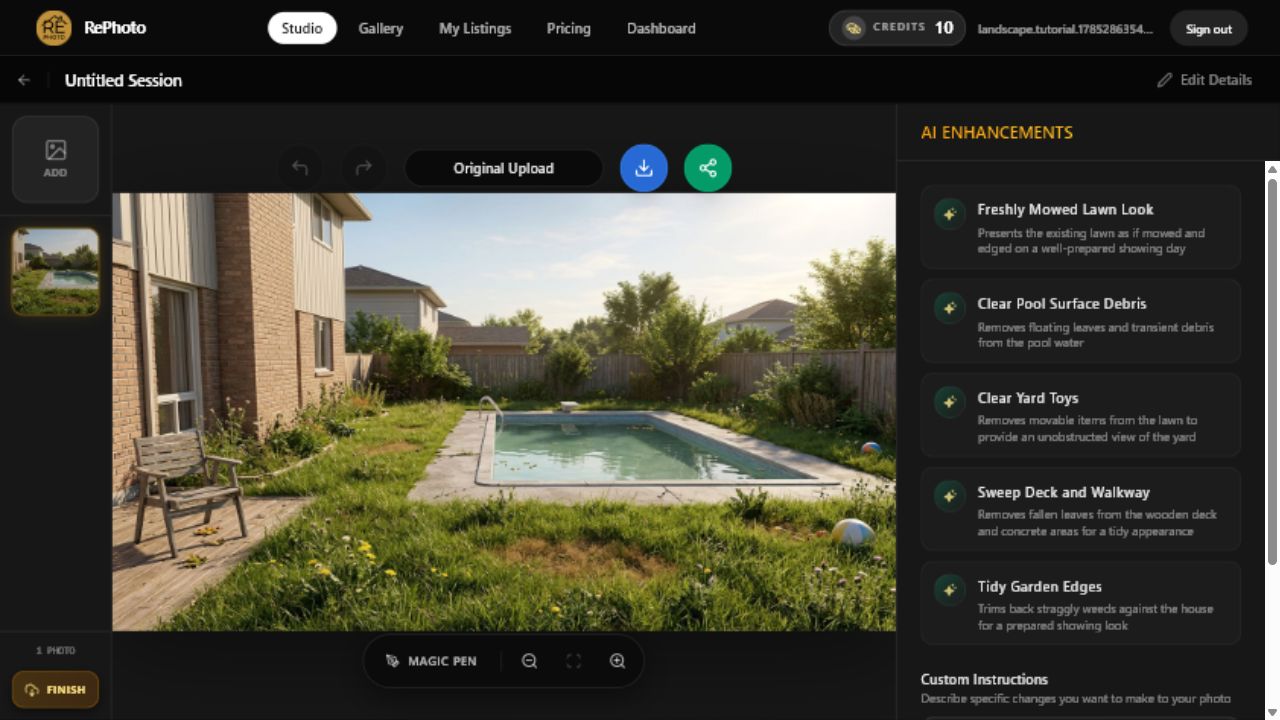
The same analysis also suggested clearing pool debris, removing yard toys, sweeping the deck and walkway, and tidying garden edges. We did not select those tasks. One focused edit makes the result easier to verify and keeps the tutorial's before-and-after claim precise.
Step 4: Generate the lawn maintenance edit
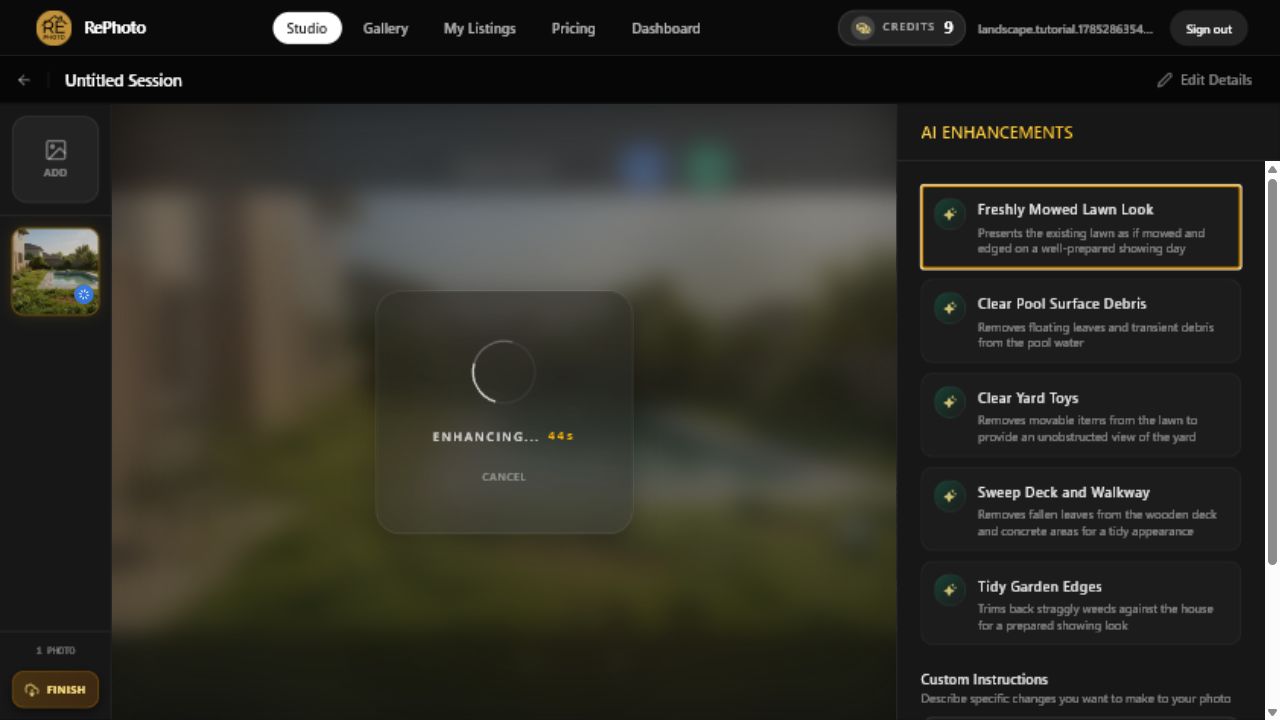
Select Freshly Mowed Lawn Look once and keep the editor open while RePhoto creates the result. The development balance moved from 10 credits to 9 for the successful enhancement. Wait for Review Generation instead of resubmitting while the progress indicator is active.
Step 5: Review the grass and property boundaries
The result opens in Review Generation. In this image, tall grass, weeds, and dandelions became shorter and more orderly, with restrained mowing lines. Existing dry areas and bare patches remained visible. The pool debris, balls, deck leaves, house, fence, trees, and garden beds were not cleaned or redesigned because those tasks were not selected.
- Lawn edges follow the original deck, pool, beds, and fence.
- Brown zones, dirt, and bare patches remain in the same locations.
- Mowing lines follow believable ground perspective and scale.
- Grass does not spill onto concrete, decking, plants, or pool water.
- The house, fence, pool, trees, shrubs, toys, and furniture remain.
- Original light direction and cast shadows remain plausible.
Choose Regenerate if the model installs new turf, fills a dead area, changes a boundary, removes an object, invents landscaping, or creates a repeating grass texture. A maintenance visualization should not turn into an unrequested landscape renovation.
Step 6: Accept, compare, and download
Select Accept Result after the lawn passes inspection. Drag the comparison slider across the yard at the same scale and check the full frame one last time. Download the accepted version only after the property and existing yard condition remain understandable. The final balance stays at 9 credits.
Virtual lawn enhancement checklist
- Use one clearly defined maintenance task per enhancement.
- Preserve lawn boundaries, dry zones, dirt, and bare patches.
- Keep buildings, fences, hardscape, views, and vegetation unchanged.
- Reject grass that repeats, floats, or ignores ground perspective.
- Retain objects and debris unless a separate cleanup was requested.
- Keep the original beside every virtual landscaping concept.
Disclosure and MLS rules for AI landscaping
Virtual landscaping changes the visible condition of real property. Rules vary by MLS and jurisdiction, so verify the current policy before using any altered exterior in marketing. As of its February 13, 2026 guidance, CRMLS states that AI-generated landscaping images are not permitted in the MLS, because they may misrepresent the property. Its guidance describes them as visual tools for buyer's agents to explore landscaping possibilities.
Other MLSs may use different rules or disclosure procedures. Do not assume that labeling an image automatically makes a landscaping alteration acceptable. Keep the source, identify the image as digitally altered, and obtain the appropriate broker or MLS guidance for the intended use.
Use virtual landscaping as a clearly labeled visualization where allowed, never as evidence that maintenance or improvements already exist.
Frequently asked questions
Can AI fix an overgrown lawn in a real estate photo?
Yes. AI can present existing grass as shorter and edged, remove tall weeds, and add restrained mowing lines. The result still needs a full review to ensure it has not replaced dead areas, changed yard boundaries, or altered property features.
Is virtual lawn enhancement the same as lawn replacement?
No. Lawn enhancement maintains the grass already shown. Lawn replacement adds or substitutes turf and can conceal dirt, dead grass, or unfinished landscaping. Replacement is a more significant visualization and carries a greater risk of misrepresenting current condition.
Can AI make brown grass green?
It can, but changing dead or brown grass into healthy turf changes the visible condition of the property. This run preserved its brown zones and bare patches. Verify usage and disclosure rules before creating or sharing a greener version.
Can I use an AI-landscaped image in an MLS listing?
It depends on the MLS, jurisdiction, and exact edit. CRMLS currently says AI-generated landscaping images are not permitted in its MLS. Always verify the rules that govern the listing instead of relying on a generic disclosure assumption.
How many RePhoto credits does the lawn enhancement use?
The successful Freshly Mowed Lawn Look enhancement in this tutorial used one credit, moving the development account from 10 credits to 9.
Create one focused virtual landscaping concept
Open RePhoto Studio to test one exterior, or learn more about the virtual landscaping tool for real estate. If the yard is accurate but the weather looks dull, use the separate real estate sky replacement tutorial.